

How to Schedule Tweets on Mobile & Desktop (2026): Free Methods

⚡ Quick Answer
Best ways to schedule tweets for free:
- X/Twitter App (Mobile & Desktop), native scheduling, genuinely free, single posts only
- Buffer, free plan with 3 channels and 10 scheduled posts each
- SocialRails, 3-day free trial, then from $29/month
- X Pro (formerly TweetDeck) is no longer free. Since 26 March 2026 it needs X Premium+ at $40/month. Most guides, including earlier versions of this one, still say otherwise
Create content, post everywhere
Create captions, images, and videos with AI. Schedule to 9 platforms in seconds.
Start your free trial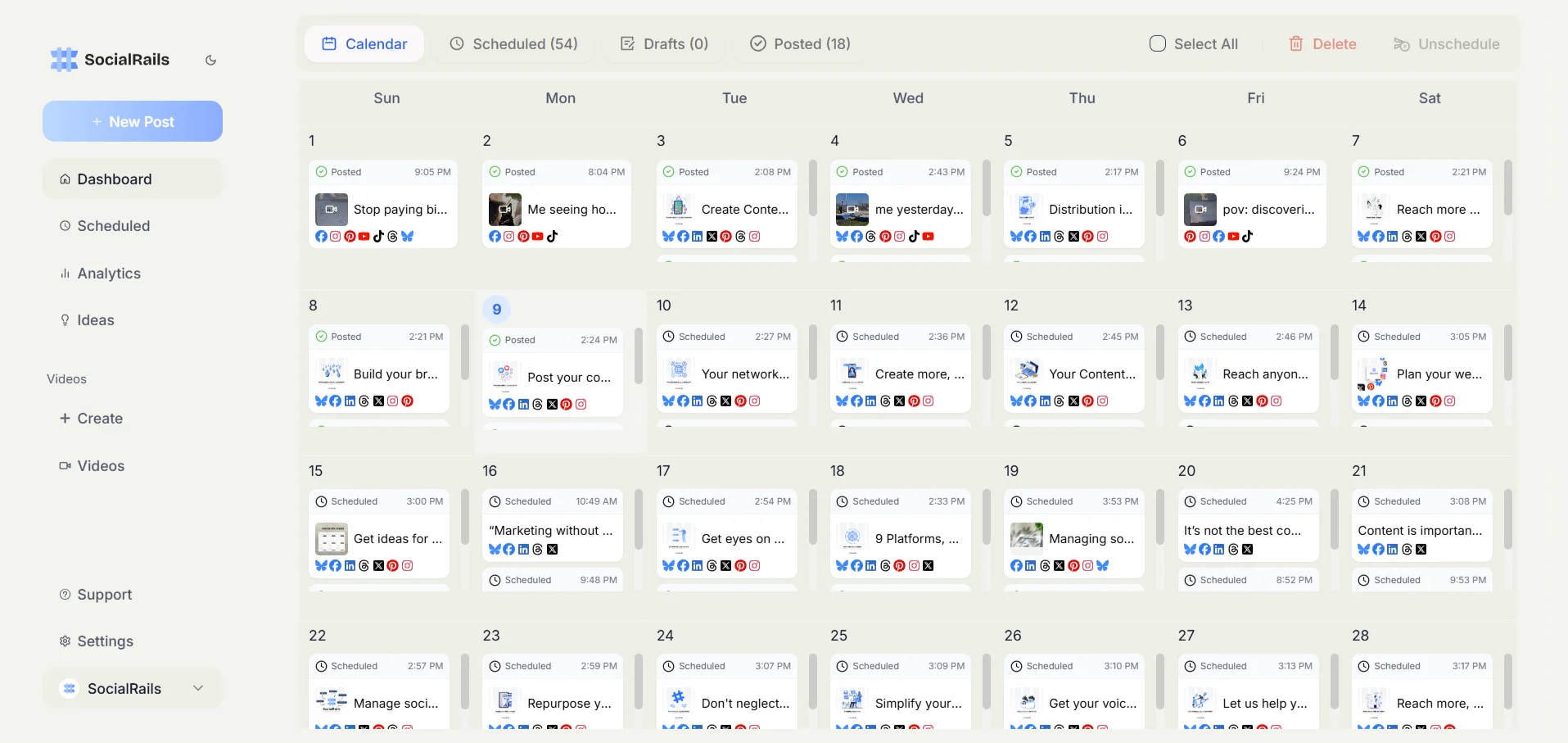
On Mobile: Use the native X app, tap compose → calendar icon → schedule On Desktop: Use the X web composer's built-in scheduler, which is free. X Pro is the paid dashboard, not the free route
Scheduling tweets helps maintain consistent presence on X (Twitter) without being glued to your phone. This guide shows you exactly how to schedule tweets for free using various methods and tools on both mobile and desktop.
Method 1: Schedule Tweets on Mobile (X/Twitter Native App)
Using the X Mobile App (iPhone & Android)
- Open X app and tap the compose button (+)
- Write your tweet (text, images, videos)
- Tap the calendar icon at the bottom
- Select date and time for posting
- Tap "Confirm" to schedule
- Tap "Schedule" button to finalize
View Scheduled Tweets:
- Go to Profile → Menu (three dots) → "Scheduled"
- Edit or delete scheduled posts
- Reschedule to different times
Mobile Scheduling Limitations
- Maximum 18 months in advance
- Must have verified phone number
- Cannot schedule replies
- Cannot schedule polls (yet)
Schedule Tweets on Desktop
X Pro (Formerly TweetDeck) Is No Longer Free
What is X Pro?
X Pro is X's own multi-column dashboard, the product that used to be called TweetDeck. It was free until August 2023, then came bundled with X Premium at $8 a month. On 26 March 2026 X moved it into Premium+ only, at $40 a month or $395 a year, mid billing cycle and with no announcement, so people already paying for Premium lost it overnight.
It is listed here because it is the tool most "schedule tweets free" guides still recommend first, and it is the one thing on this page that will cost you $480 a year if you follow that advice. If the multi-column live view is what you want, see our X Pro pricing breakdown. If you just want to schedule posts, the free X web composer above already does it.
Setup Process
-
Access X Pro
- Go to pro.x.com (the old tweetdeck.twitter.com address no longer serves it)
- Log in with an X account that has a Premium+ subscription
- Accept permissions
-
Create Scheduled Tweet
- Click "New Tweet" button
- Write your tweet
- Click calendar icon
- Select date and time
- Click "Schedule Tweet"
-
Manage Scheduled Tweets
- View scheduled posts in "Scheduled" column
- Edit or delete before posting
- Reschedule if needed
X Pro Features (on Premium+)
- Schedule unlimited posts
- Manage multiple accounts
- Create custom columns
- Monitor mentions and searches
- Schedule threads
Method 2: Using Buffer Free Plan
Buffer Free Features
- 10 scheduled posts at a time
- 1 social account per platform
- Basic analytics
- Browser extension
- Mobile app
How to Schedule with Buffer
-
Sign Up
- Create free account at buffer.com
- Connect your Twitter account
- Verify permissions
-
Schedule Posts
- Click "Create Post"
- Write tweet content
- Add images or videos
- Select posting time
- Click "Schedule"
-
Optimize Timing
- Use Buffer's suggested times
- Set posting schedule
- Queue posts automatically
Buffer Limitations
- Only 10 posts in queue
- Limited analytics
- No thread scheduling in free plan
- Single account only
Method 3: Using Hootsuite Free Trial
Hootsuite Trial Features
- 30 days full access
- Unlimited scheduling
- 3 social profiles
- Basic analytics
- Team collaboration
Scheduling Process
-
Setup Account
- Sign up for free trial
- Add Twitter account
- Sign up for free trial
-
Create Content
- Use Composer tool
- Schedule individual tweets
- Bulk upload via CSV
- Set auto-schedule
-
Content Calendar
- Visual calendar view
- Drag and drop rescheduling
- Content approval workflow
Method 4: Using Later's Free Plan
Later Free Features
- 10 posts per month per profile
- 1 social set (1 profile per platform)
- Media library (30 items)
- Visual content calendar
- Basic analytics
How to Use Later
-
Account Setup
- Register at later.com
- Connect Twitter profile
- Set timezone
-
Schedule Content
- Upload media
- Write captions
- Select best time
- Auto-publish or manual
-
Content Planning
- Visual grid planner
- Hashtag suggestions
- User-generated content
Method 5: Free Browser Extensions
Twittimer
- Free Chrome extension
- Schedule directly from Twitter
- Simple interface
- No account needed
Hypefury Free Trial
- 3-day free trial
- Advanced scheduling
- Thread composer
- Auto-retweet old posts
How to Schedule Twitter Threads
Native thread scheduling is not free, and this page used to file it under "for free". The tool that does it is X Pro, the rebuilt TweetDeck, which has required X's Premium+ tier at $40 a month since 26 March 2026. See our TweetDeck/X Pro pricing breakdown.
In X Pro (paid):
- Write first tweet
- Click "Add another Tweet"
- Continue the thread
- Schedule the entire thread
- Posts as a connected thread
Free alternatives for threads: most third-party schedulers on their free tiers can queue a thread, and X's own composer can schedule single posts at no cost, so you can schedule the opening post and add the replies manually when it goes live.
Using Thread Composer Tools
- Typefully - Free plan available
- Chirr App - Limited free tier
- Thread Creator - Basic free features
Thread Scheduling Best Practices
- Number your tweets (1/5, 2/5, etc.)
- Keep consistent timing between tweets
- Include thread summary in first tweet
- Add call-to-action in last tweet
Advanced Free Scheduling Techniques
Bulk Scheduling via CSV
Some tools allow CSV upload:
- Create spreadsheet with tweets
- Add date/time columns
- Include media URLs
- Upload to scheduling tool
- Review and confirm
Using IFTTT for Automation
- Create IFTTT account
- Connect Twitter
- Set triggers (RSS, Google Sheets, etc.)
- Automate posting
API-Based Solutions
For developers:
- Twitter API v2
- Build custom scheduler
- Free within rate limits
- Full control over features
Scheduling Best Practices
Optimal Scheduling Strategy
-
Frequency
- 3-5 tweets daily minimum
- Space 2-3 hours apart
- Mix content types
-
Timing
- Schedule for peak hours
- Consider time zones
- Test different times
-
Content Mix
- 40% valuable content
- 30% shared content
- 20% promotional
- 10% personal/fun
Content Calendar Planning
Weekly Schedule Template
- Monday: Industry news, week ahead
- Tuesday: Tips and tutorials
- Wednesday: User-generated content
- Thursday: Thought leadership
- Friday: Fun content, roundups
- Weekend: Evergreen content, quotes
Engagement While Scheduled
- Check mentions regularly
- Respond to comments
- Retweet relevant content
- Join conversations
- Monitor trending topics
Free vs Paid: When to Upgrade
Stay Free If You:
- Post less than 10 times weekly
- Manage single account
- Don't need detailed analytics
- Have time for manual engagement
Consider Paid If You:
- Manage multiple accounts
- Need advanced analytics
- Want team collaboration
- Require bulk scheduling
- Need customer support
Common Scheduling Mistakes to Avoid
1. Over-Automation
- Don't schedule everything
- Leave room for real-time engagement
- Respond to trends manually
2. Ignoring Analytics
- Track engagement rates
- Monitor best performing times
- Adjust schedule based on data
3. Repetitive Content
- Vary your content types
- Avoid duplicate posts
- Refresh evergreen content
4. Wrong Timezone
- Set correct account timezone
- Consider audience location
- Use analytics to verify
Platform Limitations
Twitter's Native Limits
- X's own composer does schedule single posts, free, via the clock icon. What it does not do free is threads
- API rate limits apply
- Character limits unchanged
- Media restrictions same
Third-Party Restrictions
- Free tiers have post limits
- Limited analytics access
- Reduced features
- Account number restrictions
Step-by-Step: Schedule Your First Tweet
Quick Start Guide
-
Choose Your Tool
- The X web composer for free single-post scheduling
- Buffer for simplicity
- Hootsuite for a trial period
-
Connect Account
- Authorize app access
- Verify permissions
- Set timezone
-
Create Content
- Write engaging tweet
- Add media if needed
- Include hashtags
-
Set Schedule
- Pick optimal time
- Choose specific date
- Confirm scheduling
-
Monitor Performance
- Check engagement
- Track impressions
- Adjust timing
Mobile Scheduling Options
Official Twitter App
- No built-in scheduling
- Draft feature only
- Must use third-party apps
Mobile-Friendly Tools
-
Buffer Mobile App
- Full scheduling features
- Push notifications
- Quick scheduling
-
Hootsuite Mobile
- Complete functionality
- Stream monitoring
- Team features
-
Later Mobile
- Visual planning
- Media library
- Quick scheduling
Troubleshooting Common Issues
Tweets Not Posting
- Check app permissions
- Verify account connection
- Confirm timezone settings
- Review Twitter status
Scheduling Errors
- Character limit exceeded
- Invalid media format
- Duplicate content warning
- Rate limit reached
Account Connection Issues
- Revoke and reauthorize
- Clear browser cache
- Check Twitter settings
- Update app permissions
FAQ: Free Tweet Scheduling
Q: Is TweetDeck really free? A: No, and it has not been since 2023. X Pro, as it is now called, moved to the Premium+ tier on 26 March 2026 and costs $40 a month or $395 a year. X's own web composer still schedules single posts for free.
Q: Can I schedule retweets? A: Not directly, but you can quote tweet with scheduling.
Q: How far in advance can I schedule? A: Most tools allow scheduling up to 1 year ahead.
Q: Can I edit scheduled tweets? A: Yes, in most tools before they post.
Q: Do scheduled tweets perform worse? A: No difference in reach if you engage afterward.
Conclusion
Scheduling tweets for free is entirely possible, but not with the tool most guides name first. X's own web composer schedules single posts at no cost, and Buffer's free plan covers 3 channels with 10 scheduled posts each. X Pro, the former TweetDeck, is now a $40 a month Premium+ feature and belongs in the paid column.
The key to successful tweet scheduling is not just the tool. It is combining scheduled content with real-time engagement, choosing optimal posting times, and maintaining a consistent presence.
Related Resources
Frequently Asked Questions About Free Tweet Scheduling
Can I really schedule tweets for completely free?
Yes, but not with TweetDeck. X's own web composer schedules single posts for free from any account. Buffer's free plan gives you 3 channels with 10 scheduled posts each, and Hootsuite offers a 30-day trial. X Pro, formerly TweetDeck, stopped being free in 2023 and has needed a $40 a month Premium+ subscription since 26 March 2026.
What's the best free Twitter scheduling tool?
X's own web composer, because it is genuinely free and has no post limit, though it only schedules single posts rather than threads. Buffer's free plan is the best free option that adds a queue and other networks. TweetDeck is no longer in this category: it is now X Pro, on the $40 a month Premium+ tier.
How far in advance can I schedule tweets for free?
Most tools allow scheduling up to a year in advance. It is still worth keeping to 2-4 weeks ahead so your content stays relevant, and so you are not left with a queue written against news that has moved on.
Can I schedule Twitter threads for free?
Not for free, and not natively. X's standard composer schedules single posts only. Scheduling a whole thread in one action needs either X Pro on Premium+ at $40 a month, or a third-party tool such as Typefully (from $8) or Buffer. The free workaround is to schedule the first post and reply with the rest yourself when it goes live.
Do scheduled tweets get the same reach as manual tweets?
Yes, Twitter's algorithm treats scheduled and manual tweets equally. What matters is posting when your audience is active and engaging with your content quickly after it goes live. Scheduled tweets often perform better due to optimal timing.
Why won't my tweets schedule properly?
Common issues include: exceeding character limits, using invalid media formats, incorrect timezone settings, or app permissions problems. Check your account connections, verify timezone settings, and ensure content meets Twitter's guidelines.
Can I edit scheduled tweets before they post?
Yes, most scheduling tools allow you to edit or delete tweets before they go live. In X Pro, find your scheduled tweets in the "Scheduled" column. Once tweets are posted, you can only delete them, not edit.
How many tweets should I schedule per day?
For optimal engagement, schedule 3-5 tweets daily, spaced 2-3 hours apart. Mix content types: 40% valuable content, 30% shared content, 20% promotional, and 10% personal. Quality and relevance matter more than quantity.
Can I schedule retweets and replies for free?
You can't directly schedule retweets, but you can schedule quote tweets with your commentary. Most free tools don't support scheduled replies, but you can schedule original tweets that mention other users using @username.
Are there any limits to free Twitter scheduling?
X's own composer has no scheduling limit but handles single posts only. Buffer's free plan allows 10 scheduled posts per channel across 3 channels, and Hootsuite's free trial lasts 30 days. X Pro has no post limit either, but it is not free: it needs Premium+ at $40 a month.
Ready to Level Up Your Twitter Strategy?
While free tools work great for basic scheduling, SocialRails offers features like AI-powered optimal timing, automated thread scheduling, and analytics. Start your 3-day free trial today.
Was this article helpful?
Let us know what you think!