

How to Schedule Instagram Stories in 2026: What Actually Works

How to Schedule Instagram Stories in 2026
Scheduling Instagram Stories is possible, but not in the way most guides describe. The single most important fact for 2026 is this: Instagram's native in-app scheduler does not support Stories. So the real options are Meta Business Suite and third-party tools, and even among those there is a catch that trips people up. This guide explains exactly what works, what does not, and why some tools that claim to "schedule" your Stories still send you a notification to post them by hand.
Quick Answer
- Instagram's native scheduler does not schedule Stories. Since March 1, 2026 any public Instagram account can schedule feed posts, carousels, and Reels directly in the app (up to 75 days ahead, 25 per day). Stories are excluded from this feature.
- Meta Business Suite (free) can schedule Stories for Instagram professional accounts and is currently the main option that truly auto-publishes Stories for you, with no notification step.
- Third-party tools (Later, Buffer, Storrito, and similar) can schedule Stories too, but many of them publish by reminder: they ping your phone at the scheduled time so you finish posting inside the Instagram app.
- Personal profiles are not supported. You need an Instagram professional account (Business or Creator) linked to a Facebook Page for any real scheduling.
Jump to a section:
- Native Instagram Scheduling Does Not Cover Stories
- Auto-Publish vs Reminder Publishing
- Schedule Stories With Meta Business Suite
- Schedule Stories With Third-Party Tools
- Reminder Scheduling and Manual Posting
- Requirements and Story Specs
- Best Times and Posting Frequency
- Frequently Asked Questions
Create content, post everywhere
Create captions, images, and videos with AI. Schedule to 9 platforms in seconds.
Start your free trial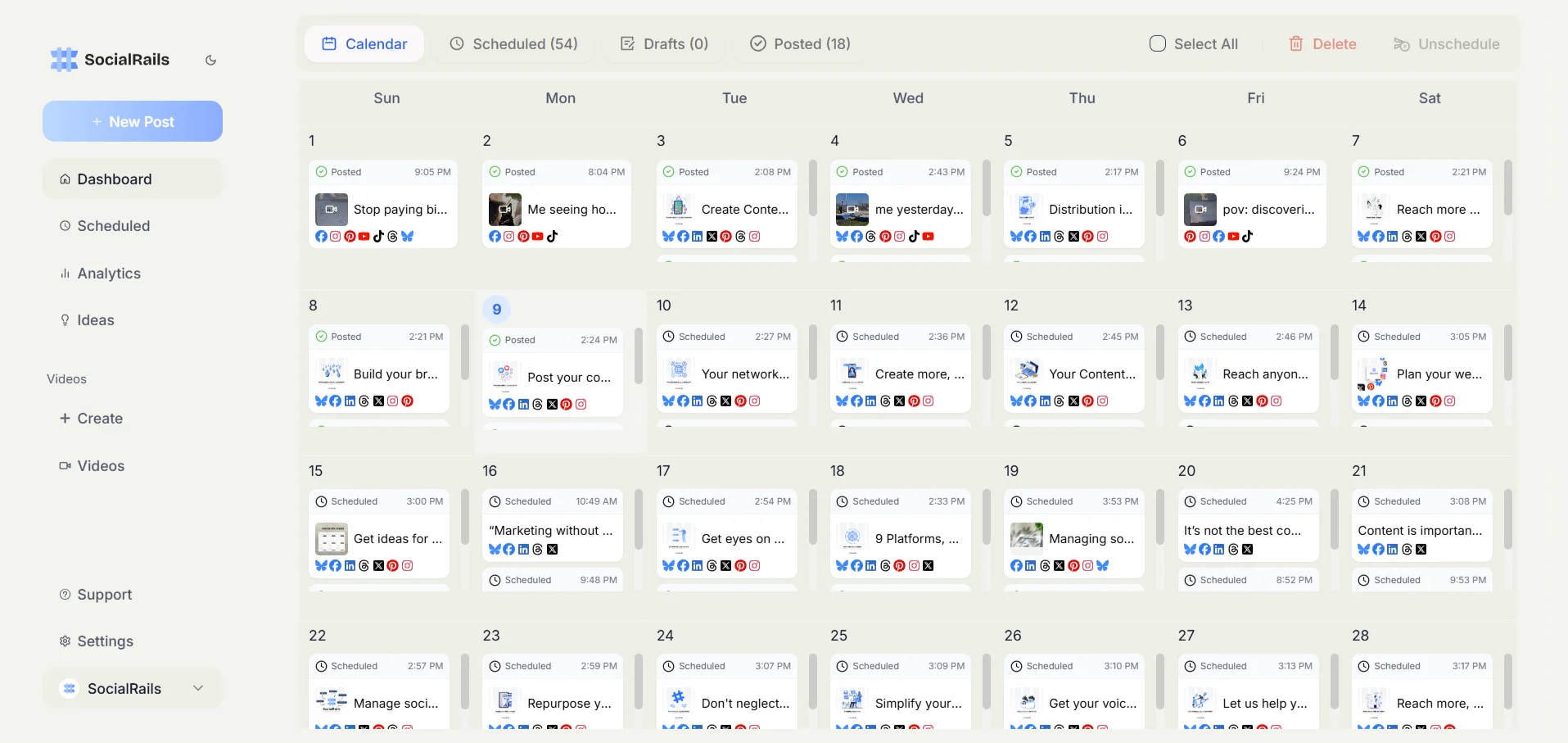
Native Instagram Scheduling Does Not Cover Stories
In March 2026 Instagram opened native, in-app scheduling to all public accounts. Before that, native scheduling was limited to professional accounts. Now anyone with a public account can tap through to schedule content directly in the Instagram app, with a limit of up to 75 days in advance and up to 25 scheduled items per day.
Here is the part almost every older article gets wrong: native in-app scheduling only covers feed posts, carousels, and Reels. Stories are not included. There is no button inside the Instagram app that lets you pick a future date and time for a Story. If a guide tells you to schedule a Story natively in the app, it is describing something that does not exist.
That is not the same as saying Stories cannot be scheduled at all. They can. You just have to step outside the native in-app scheduler and use one of two routes: Meta Business Suite or a third-party tool. Both are covered below.
One more retired product to clear up: Meta Creator Studio was shut down in 2024. If you find instructions that route you to Creator Studio to schedule Stories, ignore them. Its scheduling features moved into Meta Business Suite, which is what you should use today.
Auto-Publish vs Reminder Publishing
This is the distinction that explains why two tools can both say they "schedule Instagram Stories" and behave completely differently. There are two publishing models:
- Auto-publish (true automation): the tool posts the Story for you at the scheduled time. You do nothing. Your phone does not have to be nearby, and the Instagram app does not have to be open.
- Reminder or notification publishing: the tool holds your Story and sends you a push notification at the scheduled time. You then open Instagram, and the media is handed to you to post manually. The scheduling happens, but the final tap is yours.
Why does reminder publishing exist at all? Because Instagram's official Content Publishing API historically has not supported posting interactive Story elements (link stickers, polls, question boxes, location tags, music) automatically. Tools that rely strictly on the official API therefore fall back to reminders whenever a Story contains those elements. A plain image or video Story is more likely to auto-publish; a Story loaded with stickers usually becomes a reminder.
When you evaluate any tool, ask one question: does it auto-publish Stories, or does it remind me to post them? The answer changes how "hands-off" your workflow really is.
Schedule Stories With Meta Business Suite
Meta Business Suite is Meta's own free tool for managing Facebook Pages and connected Instagram professional accounts. In 2026 it is the most reliable way to genuinely auto-publish Instagram Stories, and it costs nothing.
What you need:
- An Instagram professional account (Business or Creator)
- A Facebook Page linked to that Instagram account
- Access to Meta Business Suite on desktop (business.facebook.com) or the Business Suite mobile app
How to schedule a Story:
- Open Meta Business Suite and select the account you manage.
- Start a new post and choose the Story format (rather than feed post or Reel).
- Upload your image or video and add any text or basic elements the tool supports.
- Choose Schedule instead of Share Now, then set the date, time, and time zone.
- Confirm. At the scheduled time, Business Suite publishes the Story to Instagram automatically.
What to keep in mind: support for the richest interactive stickers can be limited compared to posting live in the app, and personal profiles are not supported. But for standard image and video Stories, Business Suite delivers true set-and-forget scheduling for free, which is why it is the recommended starting point.
For a deeper walkthrough of building and posting Stories from a computer, see our guide on how to post Instagram Stories from a PC.
Schedule Stories With Third-Party Tools
Third-party schedulers add planning calendars, batch uploads, team collaboration, and analytics on top of scheduling. They are useful when you manage a lot of content or several accounts. The important thing is to know each tool's Story publishing model before you rely on it.
The pattern is consistent: tools built on Instagram's official Content Publishing API tend to auto-publish simple Stories and fall back to reminders for anything interactive, while tools that specialize in Stories go further to auto-publish stickers and links. Always confirm the current behavior on the tool's own site, because API support changes over time.
If you want the full strategy behind what you schedule, not just how, read our Instagram Stories strategy guide.
Reminder Scheduling and Manual Posting
Reminder scheduling is not a failure mode. For many creators it is the practical choice, because it lets you keep every interactive sticker, poll, and link that the auto-publish path would strip away.
The workflow looks like this:
- Build and schedule the Story in your tool of choice.
- At the scheduled time, the tool sends a push notification to your phone.
- You tap the notification, the media opens in Instagram (often pre-loaded), and you add live-only elements like music, polls, or the newest sticker types.
- You tap to publish.
The trade-off is simple. Auto-publish is fully hands-off but limited in what elements survive. Reminder posting requires you to be available for a few seconds at post time but preserves the full creative toolkit. Batch your Stories in advance either way, and decide per Story which model fits: routine image Stories can auto-publish, while your high-effort interactive Stories are worth a reminder.
Requirements and Story Specs
Before you schedule anything, make sure your account and files are ready.
Account requirements:
- An Instagram professional account (Business or Creator); personal profiles cannot be scheduled through Business Suite or the official API.
- A linked Facebook Page for API access and Business Suite management. Converting to a professional account is free and does not delete your existing content.
Story media specs:
- Aspect ratio: 9:16 (vertical), 1080 x 1920 pixels recommended.
- Images: JPG or PNG.
- Video: MP4 or MOV. Keep video Stories short; Instagram plays long videos as separate Story segments.
- Design for a small mobile screen: large readable text, safe margins so stickers and profile elements do not cover your content.
Best Times and Posting Frequency
Scheduling only helps if you post when your audience is actually watching. Instagram Insights (available on professional accounts) shows when your specific followers are most active, and that data beats any generic chart. As a starting point, weekday mid-mornings, lunch hours, and early evenings tend to see strong Story activity, but treat those as a hypothesis to test against your own Insights.
A few practical guidelines:
- Plan roughly one to two weeks of Stories ahead, and leave gaps for real-time, spontaneous content. Stories reward authenticity, so an all-scheduled feed can feel flat.
- Do not overload a single day. Too many Stories in a row leads to tap-throughs and drop-off.
- Mix formats: behind-the-scenes, quick tips, polls and questions, and the occasional promotion.
For platform-by-platform timing benchmarks, see our guide to the best times to post on social media. For content inspiration, browse Instagram Story ideas for business.
Frequently Asked Questions
Can you schedule Instagram Stories in the Instagram app?
No. Instagram's native in-app scheduler, opened to all public accounts in March 2026, only covers feed posts, carousels, and Reels. Stories are not supported by native in-app scheduling. To schedule a Story you need Meta Business Suite or a third-party tool.
What is the best free way to schedule Instagram Stories?
Meta Business Suite is the best free option. It can auto-publish Stories for Instagram professional accounts with no notification step, using your linked Facebook Page. Standard image and video Stories publish automatically at the time you set.
Why does my scheduling tool send a notification instead of posting the Story?
That is reminder publishing. Instagram's official Content Publishing API does not support auto-posting interactive Story elements like link stickers, polls, and questions. Tools built on that API hold the Story and ping you to finish posting manually whenever it contains those elements.
Can I schedule Instagram Stories with link stickers and polls automatically?
Usually not through tools that rely on the official API, which fall back to reminders for interactive elements. A Story-focused tool such as Storrito can auto-publish Stories including link stickers and interactive elements. Otherwise, use reminder scheduling and add those elements when you finish posting in the app.
Do I need a business account to schedule Instagram Stories?
Yes. You need an Instagram professional account (Business or Creator) linked to a Facebook Page. Personal profiles cannot be scheduled through Meta Business Suite or the official API. Converting to a professional account is free and keeps your existing content.
Can I still use Meta Creator Studio to schedule Stories?
No. Meta Creator Studio was shut down in 2024. Its scheduling features moved into Meta Business Suite, which is the current tool to use for scheduling Instagram Stories and other content.
How far in advance can I schedule Instagram Stories?
It depends on the tool. Meta Business Suite and third-party schedulers let you queue Stories days or weeks ahead. It is generally best to plan one to two weeks out so your Stories stay timely and you leave room for spontaneous, real-time content.
What are the file requirements for a scheduled Instagram Story?
Use a 9:16 vertical aspect ratio at 1080 x 1920 pixels. Images should be JPG or PNG and video should be MP4 or MOV. Keep video Stories short, since Instagram plays longer videos as separate Story segments.
Start Scheduling Your Stories
Create content, post everywhere
Create captions, images, and videos with AI. Schedule to 9 platforms in seconds.
Start your free trialPlan your Stories and the rest of your Instagram content from one calendar with SocialRails. Batch your week of Stories, coordinate them with your feed posts and Reels, and keep a consistent presence without living inside the app.
Related Reading
- How to post Instagram Stories from a PC - the full desktop workflow for building and uploading Stories.
- Instagram Stories strategy guide - what to post, not just how to schedule it.
- Instagram Story vs post - when to use each format.
- Best times to post on social media - timing benchmarks across platforms.
- Instagram Story ideas for business - content inspiration to fill your schedule.
Was this article helpful?
Let us know what you think!