
10 Best Photo Editing Apps for Instagram in 2026 (Free & Paid, Verified Pricing)
TL;DR: The Short Answer
If you want one free app that does almost everything, install Snapseed. It is completely free from Google (no ads, no watermark, no in-app purchases), and the 2026 Snapseed 4.0 rewrite added a modern interface plus AI-assisted portrait and selective tools. For a signature aesthetic, pair it with VSCO (free Starter tier). Only reach for a paid app when you need something specific: RAW workflow and cloud sync (Adobe Lightroom), fast portrait retouching (Facetune), or templates and branded graphics (Canva).
Every price below was checked against the vendor or app store in July 2026. App-store prices vary by region and billing cycle, so treat the figures as current list prices and confirm in your own store before subscribing.
Jump to a section:
- At-a-glance comparison table
- The best free option
- All around editors
- Pro and RAW editors
- Filters and aesthetic apps
- Portrait and retouch
- Design and template apps
- How to choose the right app
- Editing best practices
- Frequently asked questions
Create content, post everywhere
Create captions, images, and videos with AI. Schedule to 9 platforms in seconds.
Start your free trial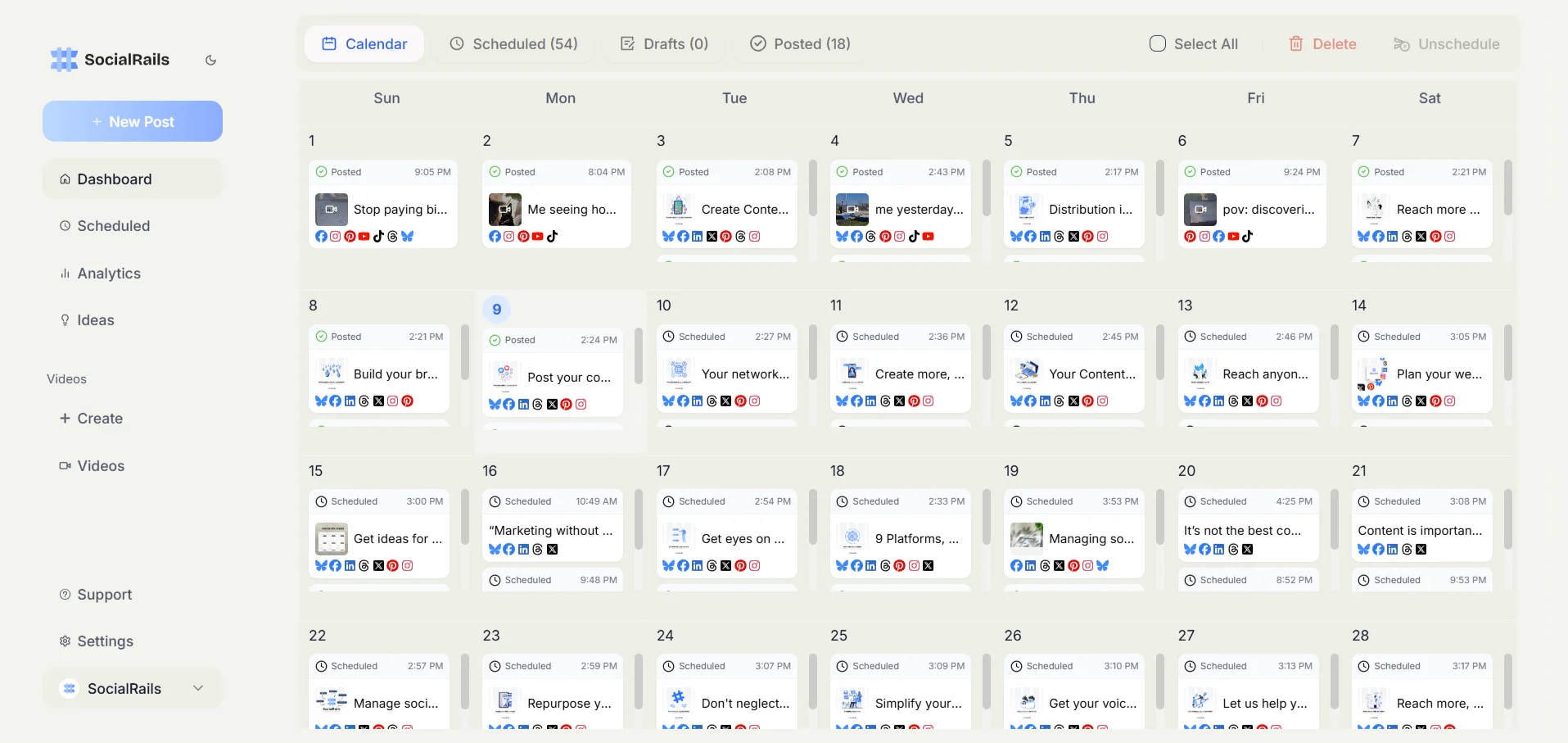
Best Instagram Photo Editors at a Glance
| App | Best for | Free tier | RAW | Paid price (verified Jul 2026) | Platforms |
|---|---|---|---|---|---|
| Snapseed | Free all-around editing | Fully featured | Yes | Free (no paid tier) | iOS, Android |
| VSCO | Film-style aesthetic | Starter (limited) | Yes | Plus about $30/yr, Pro about $60/yr (annual) | iOS, Android, web |
| Adobe Lightroom | RAW and cloud workflow | Yes (basic) | Yes | Photography plan from $9.99/mo; app-store variable | iOS, Android, desktop |
| Darkroom | Fast iOS RAW editing | Yes (basic) | Yes | $9.99/mo, $39.99/yr, or $99.99 one-time | iOS, iPadOS, Mac |
| Adobe Photoshop | Advanced compositing | Mobile app has free tier | Yes (via Camera Raw) | Photography plan from $9.99/mo; single app about $22.99/mo | Desktop, iOS, Android |
| RNI Films | Authentic film emulation | Yes (limited packs) | Yes | One-time in-app packs; check current app-store pricing | iOS, Android |
| Picsart | Creative effects and collage | Yes (with ads) | No | Plus and Pro tiers, roughly $6/mo; billing-cycle variable | iOS, Android, web |
| Facetune | Portrait retouching | Yes (basic) | No | About $77.99/yr; monthly higher; app-store variable | iOS, Android |
| Canva | Templates and graphics | Yes (generous) | No | Pro $18/mo or $144/yr (about $12/mo annual) | Web, iOS, Android |
| Instories | Fast Stories and posts | Yes (limited) | No | Subscription; check current app-store pricing | iOS, Android |
Pricing basis: vendor pricing pages and App Store or Google Play listings, checked July 2026. App-store prices vary by region, currency, billing cycle, and promotions. Adobe plan pricing changed in March 2026, so confirm the current figure at checkout.
The Best Free Option
Snapseed is the best free Instagram editor, full stop. Most listicles bury this because free apps do not earn affiliate commissions, but the honest answer for the majority of users is: you do not need to pay anything.
Here is the real free-tier reality in 2026, which many older guides get wrong:
- Snapseed: everything is free. No ads, no watermark, no locked tools, no in-app purchases. The 2026 Snapseed 4.0 update finally modernized the interface and added AI-assisted portrait and selective editing on top of the existing curves, healing, and RAW support.
- VSCO: the free Starter tier gives you a solid set of presets and manual editing. The 200-plus preset library and AI tools sit behind Plus and Pro.
- Adobe Lightroom: the mobile app has a genuinely useful free tier for exposure, color, and curves. RAW capture, masking with AI subject and sky selection, and cloud sync move to the paid plans.
- Canva: the free tier is generous for Instagram templates, text, and basic background removal is now partly available for free depending on the asset.
- Picsart and Facetune: free tiers exist but are the most aggressive about pushing you to paid, with watermarks or locked results on the best features.
If you are editing personal or casual content, start free and only upgrade when you hit a specific wall.
All Around Editors
1. Snapseed (Free, Google)
Snapseed is the most capable free editor available and works for almost any Instagram photo.
What it is best for: professional-level adjustments without a subscription.
Key features:
- Full tool set: curves, selective (control point) editing, healing brush, structure, and RAW support
- 2026 Snapseed 4.0 redesign with a cleaner interface and AI-assisted portrait and selective tools
- No ads, no watermark, no in-app purchases
Pricing: Free. Verified July 2026 on Google Play and the App Store, still owned and updated by Google.
Watch out for: filters and presets are limited compared with VSCO, and there is no desktop version or built-in social sharing.
If you shoot on your phone and want to learn real editing, this is the app. Pair it with our guide on how to take better Instagram photos to get more out of every shot before you even open an editor.
2. VSCO (Free Starter; Plus and Pro paid)
VSCO remains the go-to for a cohesive, film-inspired feed aesthetic.
What it is best for: a consistent look across your grid with minimal effort.
Key features:
- Signature film-style presets and fine manual controls
- Plus and Pro tiers unlock 200-plus presets, AI tools, and (on Pro) client galleries and profile insights
- Web and mobile
Pricing (verified July 2026, VSCO plans page):
- Free Starter tier
- Plus: about $30/year (billed annually)
- Pro: about $60/year (billed annually), monthly billing is higher
- VSCO also sells a $499.99/year One tier aimed at working pros
Watch out for: the best presets and AI tools require a subscription, and there is no one-time purchase option.
A tight preset choice is the fastest route to a recognizable feed. See our Instagram grid splitter guide if you also want to plan how those edited photos sit together in your grid.
Pro and RAW Editors
3. Adobe Lightroom (Free tier; paid plans)
Lightroom is the standard for photographers who want RAW editing, presets, and sync across phone and desktop.
What it is best for: serious photo workflows and repeatable color grading.
Key features:
- Excellent RAW processing and non-destructive edits
- AI masking (subject, sky, background) and cloud sync across devices
- Huge preset ecosystem
Pricing (verified July 2026): the mobile app has a free tier. Paid access comes through Adobe plans. The Adobe Photography plan (Lightroom plus Photoshop) starts around $9.99/month on annual billing, and the Lightroom 1TB plan rose to $14.99/month for new subscribers in March 2026. A mobile-only Lightroom Premium option exists and is app-store variable. Confirm the current figure at checkout.
Watch out for: it is a subscription commitment, and the interface has a learning curve for beginners.
4. Darkroom (Free tier; paid)
Darkroom is a fast, native editor for people in the Apple ecosystem.
What it is best for: iPhone, iPad, and Mac users who want speed plus RAW support.
Key features:
- RAW editing, curves, and precise masking
- Custom filter creation and deep Apple Photos integration
- Batch editing
Pricing (verified July 2026, App Store): free tier, then Darkroom Plus at $9.99/month or $39.99/year, or a one-time $99.99 lifetime unlock.
Watch out for: Apple platforms only, with no Android or Windows version.
5. Adobe Photoshop (Paid; mobile app has free tier)
Photoshop is overkill for most Instagram posts, but nothing beats it for compositing, object removal, and pixel-level control.
What it is best for: advanced edits, retouching, and generative fill work.
Key features:
- Layer-based editing, advanced selection and masking
- Generative AI tools for fill, expand, and object removal
- Desktop plus a mobile app that now has a free tier with paid upgrades
Pricing (verified July 2026): available through the Adobe Photography plan from around $9.99/month (includes Lightroom), or Photoshop as a single app at roughly $22.99/month. Adobe pricing changed in 2026, so check the current figure.
Watch out for: steep learning curve and a subscription cost that is hard to justify for casual posting.
Filters and Aesthetic Apps
6. RNI Films (One-time purchases)
RNI Films specializes in authentic analog film emulations with real color science.
What it is best for: genuine film looks without a subscription.
Key features:
- Carefully profiled film stocks, grain, and tone controls
- One-time purchases rather than a subscription
- Minimal, focused interface
Pricing: in-app film packs are one-time purchases. Exact figures vary by pack and store, so check current app-store pricing before buying.
Watch out for: it is focused on film aesthetics and has a smaller feature set than a full editor.
7. Picsart (Free with ads; paid tiers)
Picsart is a creative playground for effects, collages, cutouts, and text.
What it is best for: artistic, effect-heavy content and quick collages.
Key features:
- Large library of effects, stickers, and AI tools
- Background removal, collage, and drawing tools
- Templates and community content
Pricing (verified July 2026): free with ads. Picsart restructured to Free, Plus, and Pro tiers in 2026, with paid access commonly around $6/month depending on tier and billing cycle. App-store variable.
Watch out for: the interface can feel cluttered and the app pushes upgrades aggressively.
Creative tip: for retro comic and pop-art halftone effects, try our Halftone Image Generator, which creates authentic vintage halftone patterns with adjustable dot sizes and color modes for Instagram posts that stand out.
Portrait and Retouch
8. Facetune (Free tier; paid subscription)
Facetune, from Lightricks, is the specialist for selfies and people-focused shots.
What it is best for: fast, targeted portrait retouching.
Key features:
- AI skin smoothing, teeth whitening, and blemish removal
- Face and body reshaping, background tools
- Makeup and detail adjustments
Pricing (verified July 2026): free tier with basic tools. The paid subscription runs about $77.99/year (roughly $6.50/month on annual billing), with monthly billing higher; a Lightricks Creativity Kit bundle is about $79.99/year. App-store variable.
Watch out for: it is easy to over-edit into unnatural results, and it is not a general-purpose editor. For a more natural finish, many creators do light retouching in Snapseed or Lightroom instead.
Design and Template Apps
9. Canva (Free; Pro paid)
Canva is the fastest way to make branded graphics, quote posts, and carousel slides.
What it is best for: templates, text overlays, and on-brand design.
Key features:
- Enormous template and element library
- Brand kits, Magic Studio AI tools, background remover, and magic resize
- Drag-and-drop editing for posts, Stories, and carousels
Pricing (verified July 2026): free tier is generous. Canva Pro is $18/month or $144/year (about $12/month on annual billing). Canva frequently runs new-customer promotions.
Watch out for: it is a design tool, not a photo editor, so pure photo adjustments are limited. Template-heavy designs can look generic without customization.
Canva is a natural fit for carousels. If you build multi-slide posts, pair it with our Instagram carousel size and dimensions guide so every slide exports at the right resolution.
10. Instories (Free tier; subscription)
Instories is built for producing Instagram Stories and posts quickly.
What it is best for: creators and marketers who need fast, templated content.
Key features:
- Animated templates for Stories and posts
- Photo and video editing in one place
- Streamlined, social-first workflow
Pricing: free tier with a paid subscription for full access. Pricing is app-store variable, so check the current figure in your store.
Watch out for: it is a newer, template-driven app, so it has fewer deep editing controls than a dedicated editor.
How to Choose the Right App
Match the app to what you actually shoot and post.
For beginners: start with Snapseed (free and powerful) or VSCO (easy presets). Instagram's built-in editor is fine for quick fixes.
For a consistent feed aesthetic: VSCO or RNI Films for a repeatable look; save one or two presets and apply them across posts.
For photographers who shoot RAW: Adobe Lightroom for cross-device workflow, or Darkroom if you are all-in on Apple devices.
For portraits and selfies: Facetune for speed, or Snapseed and Lightroom for a more natural finish.
For branded graphics and carousels: Canva for templates and text, plus Instories for fast animated Stories.
For creative effects: Picsart for collages and artistic filters.
Once your photos are edited, the next step is publishing them consistently. See our roundup of the best apps to schedule Instagram posts and our full Instagram marketing strategy guide to turn a good feed into real growth.
Editing Best Practices
You do not need every app. You need a repeatable process.
A simple workflow that works in any editor:
- Correct first: fix exposure and white balance, then straighten and crop. Before editing, size your image with our Instagram photo resizer so Instagram does not auto-crop your composition.
- Enhance color: raise vibrance rather than saturation, and keep skin tones natural.
- Add style sparingly: apply a preset, then pull the opacity back to about 70 to 80 percent so it enhances rather than transforms.
- Finish: sharpen lightly for mobile viewing and preview how the photo looks in your grid.
Common mistakes to avoid:
- Excessive saturation, HDR, or sharpening that creates artifacts
- Unnatural skin tones from heavy retouching
- An inconsistent style that makes your grid look scattered
Build a consistent aesthetic: pick one to three presets, keep white balance and brightness consistent, and edit similar photos in batches. Apps like VSCO, Lightroom, and Canva let you save your preferred settings so your look stays recognizable.
Instagram image basics
- Aspect ratios: 1:1 square, 4:5 portrait, or 1.91:1 landscape
- Resolution: at least 1080 pixels on the short edge
- Format: JPEG for photos, PNG for graphics with transparency
- Color space: sRGB for accurate mobile display
Master Instagram Photo Editing
Quick Wins:
- Start with Snapseed (free)
- Learn basic exposure and color correction
- Find your signature preset
- Edit on mobile for accuracy
- Preview in your Instagram grid
Pro Tips:
- Shoot in RAW when possible
- Save and reuse custom presets
- Batch edit similar photos
- Keep skin tones natural
- Stay consistent across posts
Frequently Asked Questions
What is the best free photo editing app for Instagram?
Snapseed is widely considered the best free photo editing app for Instagram. It offers professional-level tools including curves, selective editing, healing brushes, and RAW support, all completely free with no ads or watermarks. The 2026 Snapseed 4.0 update added a modern interface and AI-assisted portrait tools. VSCO's free Starter tier is another strong option for filters.
Do I need to pay for photo editing apps?
No. Free apps like Snapseed, VSCO's Starter tier, and Instagram's built-in editor are enough for most users. Paid apps add premium presets, advanced tools, watermark-free exports, and cloud sync. Upgrade only when you hit a specific wall, such as needing RAW cloud workflow or fast portrait retouching.
Which photo editing app is best for beginners?
Start with Snapseed or VSCO. Both have approachable interfaces. Snapseed gives you more technical control for free, while VSCO focuses on presets for a quick, consistent look. Instagram's built-in editor is also fine for fast, simple edits without installing anything.
How much does VSCO cost in 2026?
VSCO has a free Starter tier. As of July 2026, the Plus plan is about $30 per year and the Pro plan is about $60 per year on annual billing, with monthly billing priced higher. VSCO also sells a $499.99 per year One tier aimed at professionals. App-store prices vary by region and billing cycle, so confirm at checkout.
What's the difference between VSCO and Lightroom?
VSCO focuses on film-inspired presets and a quick, consistent aesthetic. Lightroom is a full RAW workflow with AI masking, advanced tools, and cloud sync across phone and desktop. VSCO is easier for beginners, while Lightroom offers far more control for photographers who shoot RAW.
Are paid photo editing apps worth it?
It depends on your needs. Casual users are well served by free apps. Pay when you need a specific capability: Lightroom for RAW and cloud sync, Facetune for fast retouching, Canva Pro for branded templates, or Darkroom's one-time lifetime unlock if you prefer not to subscribe.
Which app is best for editing selfies and portraits?
Facetune is purpose-built for portraits, with AI skin smoothing, teeth whitening, and facial adjustments. For a more natural result, use Snapseed's healing and selective tools or Lightroom's targeted masks. It is easy to over-edit in Facetune, so a light touch looks better.
Is the Over app still available?
Not as a standalone photo app. Over was rebranded to GoDaddy Studio and, in February 2026, folded into the main GoDaddy app. Existing projects carried over, but it is no longer a dedicated Instagram editing app. For templates and text-based designs, Canva is the closest current replacement.
Do Instagram photo editing apps work on Android and iPhone?
Most do, including Snapseed, VSCO, Lightroom, Canva, Picsart, and Facetune. Darkroom is Apple-only (iPhone, iPad, and Mac). Features can vary slightly between platforms, with iOS sometimes getting updates first, but core functionality is consistent.
How do I create a consistent Instagram aesthetic?
Pick one to three presets and apply them consistently at about 70 to 80 percent opacity. Keep white balance and brightness consistent, use a steady color palette, and edit similar photos in batches. VSCO, Lightroom, and Canva all let you save your preferred settings so your look stays recognizable.
Create Instagram Content Like a Pro
Edit stunning photos, schedule at optimal times, and grow your Instagram presence with the SocialRails social media toolkit.
Related Resources
- Best Apps to Schedule Instagram Posts: automate your posting workflow
- How to Take Better Instagram Photos: photography fundamentals
- Instagram Stories Strategy Guide: maximize Stories impact
- Instagram Marketing Strategy: complete Instagram growth guide
- Instagram Carousel Size and Dimensions Guide: perfect dimensions for multi-slide posts
- Instagram Grid Splitter Guide: plan how your edited photos sit together
- Instagram Bio Ideas: craft the perfect bio
Was this article helpful?
Let us know what you think!