

Facebook Business Page Categories: How They Work (2026)

TL;DR: Facebook Page Categories at a Glance
- A Facebook Page can list up to 3 categories, all chosen from Meta's fixed, predefined list. You cannot invent your own.
- The first (primary) category is the one that matters most. It signals what your business is, influences how Facebook surfaces your Page in search and recommendations, and determines which features and call-to-action buttons you can use.
- The extra two categories are secondary. They add context for discovery but do not override the primary category's features.
- Categories are edited on the Page itself under Edit details (or the About / Page details section), or in Meta Business Suite under Settings. The old classic "Page Settings > Page Info" flow no longer applies now that the New Pages Experience is the default.
- Choose the most specific accurate category, not the most popular one. Accuracy drives the right features and the right audience.
Setup time: 2 to 5 minutes.
Create content, post everywhere
Create captions, images, and videos with AI. Schedule to 9 platforms in seconds.
Start your free trial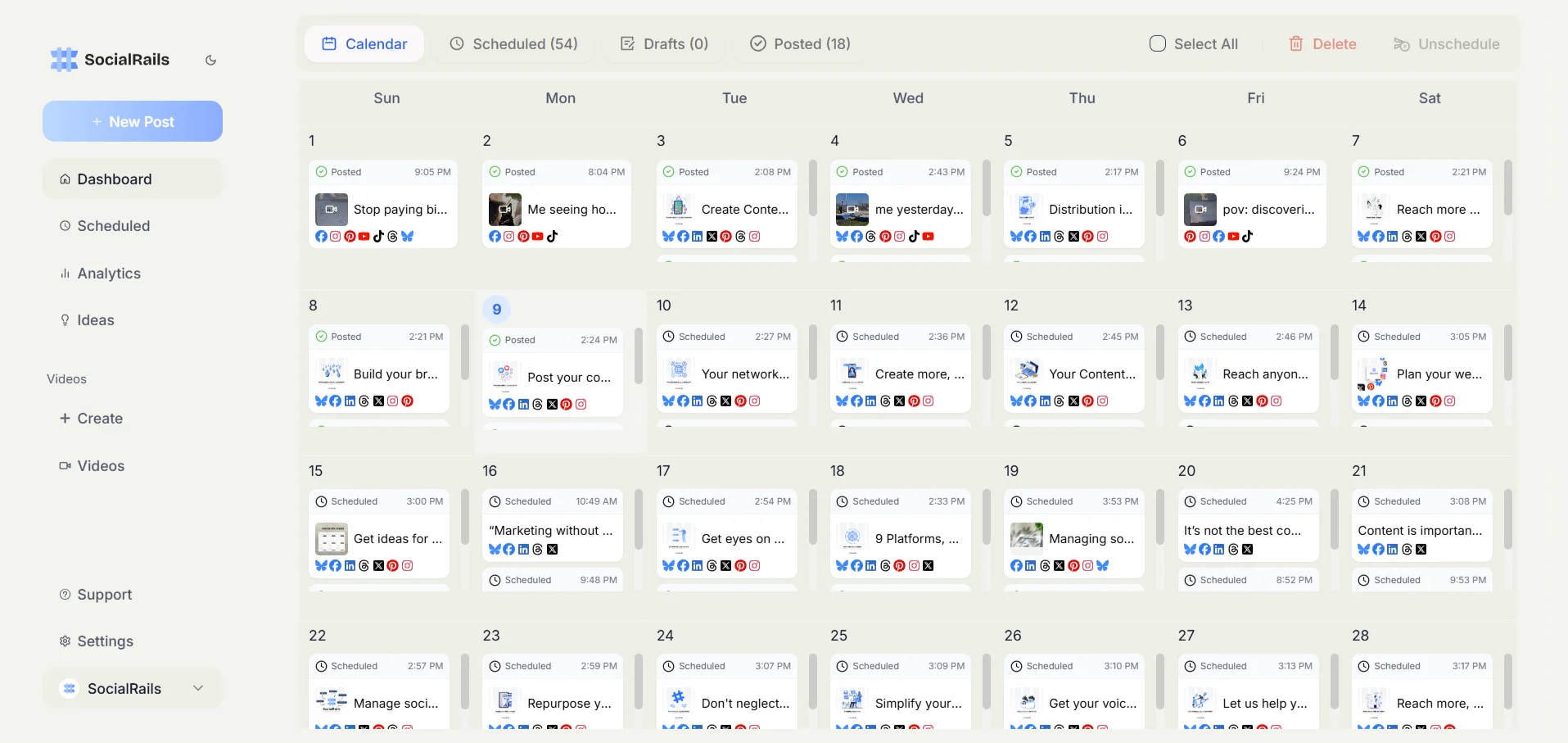
Jump to:
- How Facebook Page categories work in 2026
- How to choose your primary category
- How categories unlock features and CTA buttons
- Complete Facebook Page categories list
- How to add or change your page categories
- Common category mistakes to avoid
- Facebook business resources
- Frequently asked questions
How Facebook Page Categories Work in 2026
A category tells Facebook (and people) what kind of business or organization your Page represents. Here is how the system actually works today:
- You pick from Meta's predefined list. Categories are not free text. As you type, Facebook suggests matching options such as Restaurant, Marketing Agency, or Clothing Store. If a label is not on Meta's list, you cannot use it.
- Up to 3 categories per Page. You choose one primary category first, then optionally add up to two more.
- Primary category takes priority. It is the strongest signal about your business and the one Facebook uses to decide which templates, features, and CTA buttons your Page gets. Secondary categories broaden the ways people can find you but do not change that feature set.
- Categories are editable at any time. Adding, removing, or reordering categories does not require creating a new Page.
Since Meta retired classic Pages, every business Page now runs on the New Pages Experience, and there is no separate "Page templates" chooser to configure like the old layout picker. The template and features you get flow from your category and the Page type, not from a manual template menu.
One nuance most guides miss: your primary category is effectively your Page's "job title" inside Facebook's graph. Two Pages with identical content but different primary categories can qualify for different features (for example, a menu, a services list, or a Book Now button). So the category is not just a label people read, it is a switch that turns capabilities on and off.
If you have not created your Page yet, start with our step by step guide on how to create a Facebook Business Page, then come back to set categories.
How to Choose Your Primary Category
Your primary category is the single most important choice, because it drives both discovery and available features. Use this order of priority:
- Most specific accurate match. Pick the narrowest category that genuinely describes your core business. "Italian Restaurant" or "Pizza Place" beats a generic "Restaurant" when it fits, because specificity helps the right people and the right features find you.
- What you want to be found for. The primary category should match the main thing customers search for when they need you, not a side offering.
- The features you need. If bookings, a menu, or a specific CTA button matter to your business, confirm the category supports them (see the next section).
- Accuracy over popularity. Do not choose a busy or trendy category that does not describe you. It confuses potential customers and can surface your Page for the wrong searches.
Then use your two secondary categories for legitimate additional context: a complementary service you really offer, or a broader parent category. For example, a bakery that also does catering might use Bakery (primary), Caterer, and Coffee Shop. Do not stack near-duplicate categories, it adds no value.
Understanding how category choice ties into Facebook reach helps you see why the right primary category matters for visibility. For a fuller optimization pass, see our Facebook business Page checklist.
How Categories Unlock Features and CTA Buttons
This is the part most category guides skip: your category is directly tied to which features and call-to-action buttons Facebook makes available. Choosing the right primary category is how you switch these on.
Category-linked capabilities include:
- Call-to-action buttons. The available CTA options (for example Book Now, Order Food, Call Now, Send Message, Learn More, Shop Now) depend on your category and Page setup. A restaurant category surfaces food ordering CTAs; a service business surfaces booking and contact CTAs. See our full Facebook CTA buttons guide for how to add and manage these.
- Menus and food ordering. Restaurant, Cafe, and similar food categories can add a menu and food delivery or ordering options.
- Services and appointments. Service based categories can list services and, where supported, enable appointment or booking flows.
- Shopping. Retail categories align with a Facebook Shop so you can showcase products. See how to set up a Facebook Shop.
- Info fields shown to visitors. Categories influence which About fields appear, such as hours, price range, service area, and location.
Because these capabilities follow the primary category, changing your primary category can add or remove features. If a button or feature you expected is missing, the most common cause is that your primary category does not support it. Reorder your categories so the feature rich one is primary, or add the correct category.
Complete Facebook Page Categories List (Examples)
Meta's full category list is long and changes over time, so treat the following as a representative starting point rather than an exhaustive catalog. When you edit your Page, type a keyword and Facebook will show the exact current options.
Local and Professional Services
- Legal Services for law firms, lawyers, and legal consultants
- Financial Services for banks, credit unions, and financial advisors
- Real Estate for agents and property management
- Insurance Agent / Broker for insurance businesses
- Accountant / Tax Preparation for CPAs and bookkeepers
- Business Consultant for consulting and management advisory
- Marketing Agency for digital marketing and advertising
- Web Designer for web development and design studios
Health and Medical
- Doctor or Medical Center for practices and clinics
- Dentist for dental and orthodontic offices
- Hospital for medical facilities and health systems
- Pharmacy for drug stores and pharmacies
- Mental Health Service for therapists and counselors
- Veterinarian for animal hospitals and vet clinics
- Physical Therapist for rehabilitation services
Home and Trade Services
- Contractor for renovation and home improvement
- Landscaping for lawn care and landscape design
- Cleaning Service for residential and commercial cleaning
- Plumber for plumbing services
- Electrician for electrical services
- HVAC for heating and cooling contractors
- Roofing Service for roofing contractors
- Pest Control Service for extermination and management
Retail and Shopping
- Clothing Store for fashion retailers and boutiques
- Electronics Store for tech and computer retailers
- Furniture Store for home furnishing retailers
- Grocery Store for supermarkets and food retailers
- Bookstore for book retailers
- Jewelry Store for jewelers and designers
- Sporting Goods Store for sports equipment
- Pet Store for pet supplies
Food and Dining
- Restaurant for full service dining
- Fast Food Restaurant for quick service
- Cafe or Coffee Shop for casual dining and coffee
- Bar for bars, pubs, and lounges
- Food Truck for mobile food services
- Caterer for catering and events
- Bakery for bakeries and pastry shops
Technology and Digital
- Software Company for SaaS and software development
- App Page for mobile apps and digital products
- Website for corporate sites and portals
- Information Technology Company for IT support and consulting
- Computer Repair Service for tech support and repairs
Creative and Media
- Artist for visual artists and creators
- Photographer for photography services
- Graphic Designer for design services
- Advertising Agency for marketing and advertising
- Media / News Company for news outlets and publications
- Event Planner for event management
How to Add or Change Your Page Categories
Because the New Pages Experience is now the default, ignore any old instructions that route you through "Page Settings > Page Info." Use one of these current paths instead.
From your Page
- Open your Facebook Page while using your Page profile.
- Click Edit details (near your Page name), or open the About / Page details section.
- Find the Categories field. Add up to 3 categories, remove ones that no longer fit, and make sure the one you want as primary is listed first.
- Click Save.
From Meta Business Suite
- Open Meta Business Suite and choose your Page.
- Go to Settings, then the Page info or Page details area.
- Edit the Categories field the same way, keeping your primary category first, then save.
Note: this is Meta Business Suite, which replaced the old Facebook Business Suite branding. Creator Studio was retired, so category and Page management now live in Meta Business Suite or on the Page itself.
When to update your categories
- Your services or products have genuinely changed.
- You want a feature or CTA button that your current primary category does not support.
- Your current category is too broad and a more specific one now fits.
Remember that changing your primary category can add or remove features and CTA options, so review your Page afterward. For related housekeeping, see how to handle a Facebook Page name change.
Common Category Mistakes to Avoid
- Choosing broad over specific. A generic category is easier to pick but reduces targeted discovery and may hide category specific features.
- Picking a trendy but inaccurate category. It surfaces your Page for the wrong searches and confuses visitors.
- Stacking near-duplicate categories. Three variations of the same thing waste your slots. Use the extra two for real, complementary context.
- Wrong primary category. If your feature rich category is listed second or third, you may miss the menu, booking, or shopping features you wanted. Put it first.
- Setting and forgetting. As your business evolves, an outdated category quietly limits both discovery and features. Revisit it periodically.
Facebook Business Resources
Page setup and optimization:
- Create a Facebook Business Page for step by step setup
- Facebook Business Account Setup for the wider account structure
- Optimize your Facebook Business Page checklist for a full review
- Facebook CTA buttons guide for the buttons categories unlock
Content and growth:
- Best Times to Post on Facebook for timing
- How to Create a Poll on Facebook for engagement
- Facebook Posting Limits to avoid restrictions
- Measure results with Facebook post engagement
Pro tip: Once your Page and categories are set, keep it active with a steady posting schedule. SocialRails lets you plan weeks of Facebook posts from one dashboard. Learn how to schedule Facebook posts to stay consistent.
Free Facebook tools:
- Facebook Caption Generator for content creation
- Facebook Poll Creator for audience interaction
Frequently Asked Questions
How many categories can I add to my Facebook business page?
You can add up to 3 categories to your Facebook Page, all chosen from Meta's predefined list. The first one is your primary category, which affects your available features and call-to-action buttons, and the other two are secondary categories that add context for discovery.
Why does the primary category matter more than the secondary ones?
Your primary category is the strongest signal about your business. Facebook uses it to decide which templates, features, and CTA buttons your Page can use, and it heavily influences how your Page is surfaced in search and recommendations. Secondary categories broaden discovery but do not change the feature set.
How do I change my Facebook page category in 2026?
Open your Page and click Edit details, or go to the About and Page details section, find the Categories field, add or remove categories with your primary one listed first, and save. You can also edit categories in Meta Business Suite under Settings and Page info. The old classic Page Settings and Page Info path no longer applies under the New Pages Experience.
Can I create a custom category that is not on Facebook's list?
No. Categories come from Meta's fixed, predefined list. As you type, Facebook suggests matching options. If a label does not appear in the suggestions, it is not available, so choose the closest accurate match.
How do categories affect my Facebook page features and buttons?
Your category, especially the primary one, determines which features and call-to-action buttons are available. For example, restaurant categories unlock menu and food ordering options, service categories enable booking and contact CTAs, and retail categories align with a Facebook Shop. If a feature is missing, your primary category usually does not support it.
Should I choose a popular category or a specific one?
Choose the most specific category that accurately describes your business, even if it is less popular. Specific categories provide the right features and reach the right audience, while broad or trendy categories can surface your Page for the wrong searches and confuse potential customers.
Does changing my category remove features I already have?
It can. Because features and CTA options follow your primary category, changing that category may add or remove capabilities. After editing categories, review your Page to confirm the buttons and features you rely on are still available, and reorder categories if needed so the feature rich one stays primary.
Can I see what categories my competitors are using?
Yes. Visit a competitor's Facebook Page and check the About or Page information section, where the category is usually shown. This can help you understand category strategies in your industry, but always prioritize accuracy for your own business over copying competitors.
Got your categories set up? If you are starting from scratch, see our complete guide on how to create a Facebook Business Page. The next step is keeping your Page active with consistent content. Learn how to schedule Facebook posts or use SocialRails to schedule across 8 platforms from one dashboard.
Was this article helpful?
Let us know what you think!