

How to See Scheduled Posts on LinkedIn (Desktop, Mobile, Pages)

Quick steps:
- Open the LinkedIn post composer.
- Click the clock icon at the bottom-right of the composer.
- Click View all scheduled posts.
Works on desktop, mobile, personal profiles, and Company Pages. Full step-by-step below, plus what to do if posts disappear or fail to publish.
Quick Answer
Create content, post everywhere
Create captions, images, and videos with AI. Schedule to 9 platforms in seconds.
Start your free trial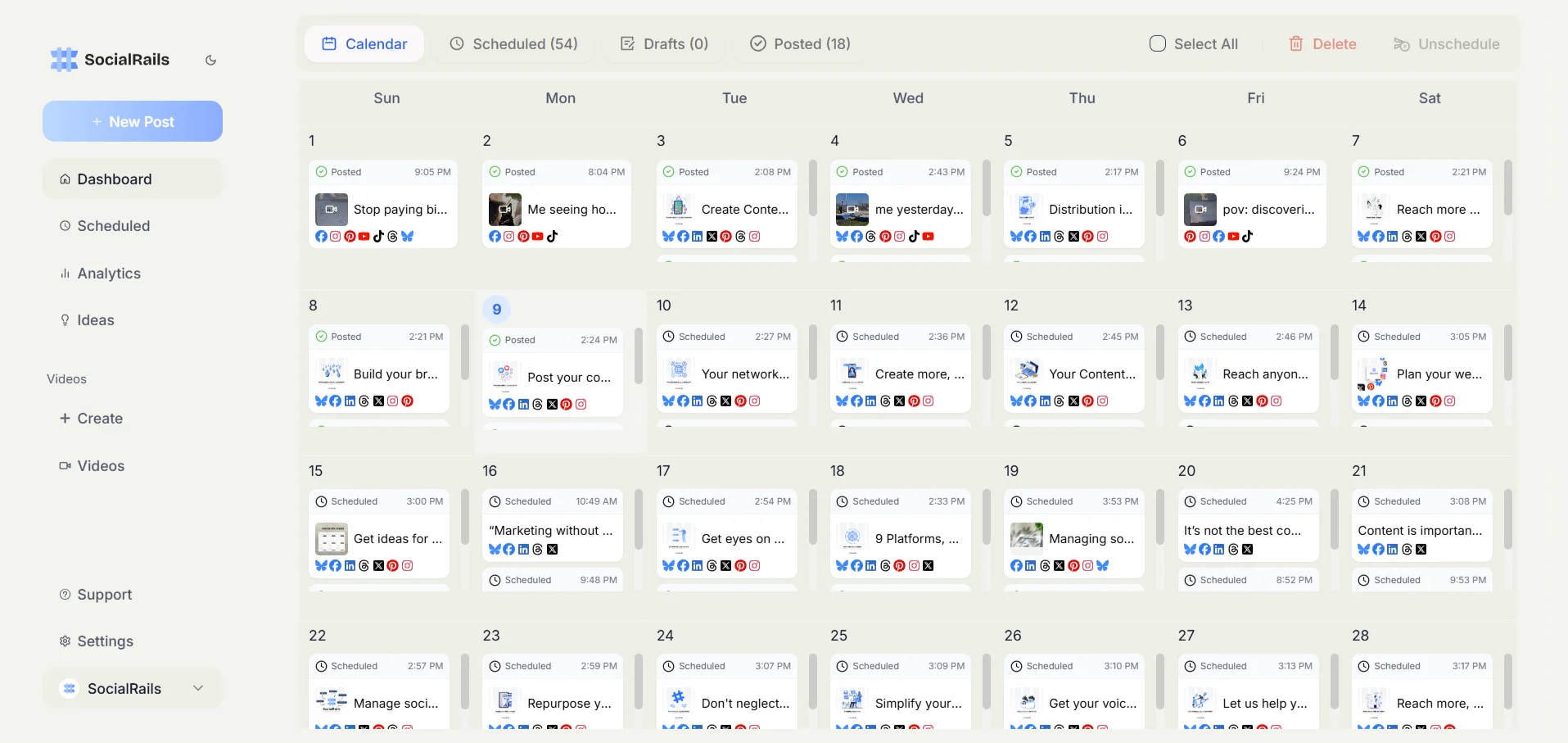
How to See Scheduled Posts on LinkedIn (Desktop)
- Go to linkedin.com and sign in.
- From your feed (or your profile), click Start a post.
- In the post composer that opens, look at the bottom right of the dialog box. You'll see a small clock icon next to the Post button.
- Click the clock icon.
- A schedule panel opens. At the bottom of that panel, click the link that says View all scheduled posts.
- You'll see a list of all your currently scheduled posts with their scheduled date and time.
From this view you can:
- Edit a scheduled post (click the pencil icon)
- Reschedule (open it, change the time)
- Delete the scheduled post (click the trash icon)
You cannot edit the text after the post publishes, you have to edit before it goes live.
How to See Scheduled Posts on LinkedIn (Mobile App)
The mobile flow has slightly more taps:
- Open the LinkedIn app.
- Tap the + Post button at the bottom of the home tab.
- Start a new post (you don't need to write anything).
- Tap the three-dot menu (⋯) in the top right of the composer.
- Tap Schedule for later.
- On the scheduling screen, tap View scheduled posts at the bottom.
Your scheduled posts appear in chronological order. Tap one to edit or delete.
Mobile limitation: Some accounts see a stripped-down version of the scheduling interface in the mobile app. If you don't see "View scheduled posts" on mobile, use the desktop browser instead, the desktop interface is more reliable for managing the queue.
How to See Scheduled Posts on a LinkedIn Company Page
If you're a Page admin and scheduled the post from a Company Page (not your personal profile), the location is different:
- Go to linkedin.com and sign in.
- Click Me → Manage → Company Page.
- From the admin view of your Page, click Start a post.
- In the composer, click the clock icon at the bottom right.
- Click View all scheduled posts.
Important: Scheduled posts on your Personal Profile and your Company Page are separate. You can only see Page-scheduled posts when you're posting as the Page. If you can't find a post you scheduled, switch context to your Page (or back to your profile).
How to Edit a Scheduled LinkedIn Post
- Open View all scheduled posts (steps above).
- Click the pencil icon next to the post.
- Edit the text, media, or scheduled time.
- Click Reschedule to save your changes.
You can edit:
- Post text
- Hashtags and mentions
- Media (images, video, document)
- Scheduled time and date
You can't:
- Change the post type (e.g., turn a text post into a poll after scheduling).
- Edit a post after it has published, LinkedIn's edit-after-publish flow is separate and has limits.
How to Delete a Scheduled LinkedIn Post
- Open View all scheduled posts.
- Click the trash icon next to the post.
- Confirm deletion.
The post is removed permanently. There's no "undo", if you want to keep the content, copy the text to a doc before deleting.
You scheduled a post yesterday but can't find it today. Most likely reason?
Scheduled Posts Disappeared or Didn't Publish?
The most common LinkedIn scheduling issues:
"My scheduled post isn't showing in the list"
- You scheduled from a different context. Switch between your Personal Profile and your Company Page. The lists don't merge.
- The post already published. Check your profile feed or Page activity, it may have gone live without you noticing.
- Browser cache. Refresh, or open in an incognito window.
"My scheduled post didn't publish at the scheduled time"
- LinkedIn API issue. LinkedIn's native scheduler occasionally fails silently. Check the scheduled posts list, if it's still there with a past timestamp, click into it and reschedule for now.
- Account flagged. If your account triggered a spam check, LinkedIn may have queued the post for review. Check Settings → Account preferences → Account activity.
- You hit the daily post limit. LinkedIn limits roughly to 4–5 posts per day. If you exceeded it, later-scheduled posts won't publish.
"I can't find scheduled posts at all"
LinkedIn's native scheduler is sometimes A/B tested off for certain accounts. If the clock icon doesn't appear in your composer, you're in a test group without scheduling. Workarounds:
- Use LinkedIn's mobile app, sometimes the feature is present there even when missing from desktop.
- Use a third-party scheduler like SocialRails to schedule LinkedIn posts and manage the queue separately.
A Better Way: Schedule LinkedIn Posts with SocialRails
LinkedIn's native scheduling works, but it has limitations:
- Scheduled posts are buried 3 clicks deep.
- Calendar view doesn't exist, you only get a list.
- No bulk editing.
- No analytics on scheduled vs. published.
- Different list for Personal Profile vs. Pages.
SocialRails solves all of these:
- Calendar and queue views, see your LinkedIn schedule alongside Instagram, X, TikTok, and other platforms.
- Edit, reschedule, drag-and-drop, full control without the clock-icon dance.
- Analytics built in, see what your scheduled posts earn in reach, comments, and clicks.
- Personal Profile + Company Pages in one view, no context switching.
→ See how SocialRails handles LinkedIn scheduling
Create content, post everywhere
Create captions, images, and videos with AI. Schedule to 9 platforms in seconds.
Start your free trialHow do I see my scheduled posts on LinkedIn?
Can I edit a scheduled LinkedIn post?
Why can't I find my scheduled LinkedIn posts?
Where are scheduled posts saved on LinkedIn Company Pages?
Why didn't my LinkedIn scheduled post publish?
How many posts can I schedule on LinkedIn?
Can I see scheduled posts on the LinkedIn mobile app?
Related Reading
LinkedIn timing and scheduling:
- Best Time to Post on LinkedIn
- Best Time to Post on Monday, LinkedIn's peak day
- How to Schedule LinkedIn Posts with SocialRails
- SocialRails for agencies, multi-client LinkedIn workspaces
LinkedIn content:
Free LinkedIn tools:
Was this article helpful?
Let us know what you think!