
How to Connect a Facebook Page to Instagram (2026 Guide)

Connecting your Facebook Page to a professional Instagram account is what unlocks cross-posting, a shared inbox in Meta Business Suite, Instagram ads, and product tagging. In 2026 the connection is a one-to-one link between one Page and one Instagram account, and you set it up in one of three places.
Skip to: Instagram app method | Business Suite method | Troubleshooting | FAQ
TL;DR
The fastest current way: open the Instagram app, go to your profile, tap Edit profile, and under Public business information tap Page. Tap Connect or create, then Continue, log in to the Facebook account that has admin (full control) of your Page, and pick the Page. Two requirements before you start: your Instagram must be a professional account (Business or Creator), and you must be an admin of the Facebook Page.
One thing that trips people up: this Page link is different from Accounts Center. Accounts Center links your personal Facebook profile to Instagram for shared logins and story sharing. The business connection that powers Business Suite, ads, and Shopping is the Page link described below.
Create content, post everywhere
Create captions, images, and videos with AI. Schedule to 9 platforms in seconds.
Start your free trial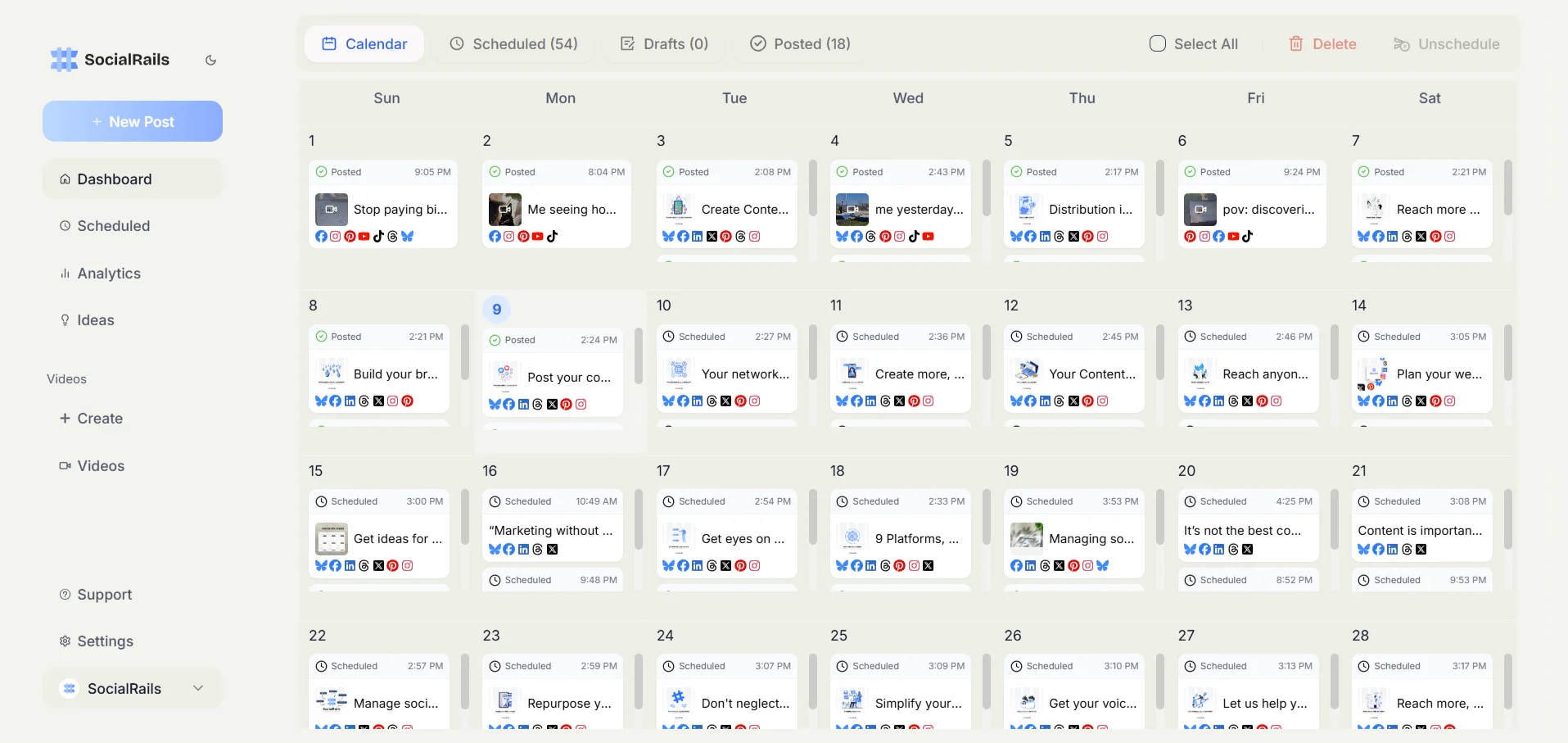
What linking enables in 2026
Once your Page and professional Instagram account are connected, you get:
A professional Instagram account plus a connected Page is the setup most Instagram business features are built on, so it is worth getting right the first time.
Before you connect
- Facebook Page, not a personal profile. You need an actual Page. If you only have a personal profile, create a Page first.
- Admin access to the Page. You must have full control (admin) of the Page. Editor, moderator, or analyst roles will not show the connect option.
- A professional Instagram account. Instagram must be a Business or Creator account. A personal account can be switched during the flow, or ahead of time in the Instagram app under Settings and privacy and then Account type and tools.
You try to connect Facebook to Instagram, but Instagram says the account type is not supported. What is the likely issue?
💡 Tip: Think carefully before selecting your answer!
Accounts Center vs the Page connection
These two are easy to mix up, and using the wrong one is the most common reason people think they connected their accounts but business features never appear.
- Accounts Center (accountscenter.facebook.com) links your personal Facebook profile to Instagram. It handles single login, syncing, and sharing stories or posts across your personal profile and Instagram. It does not create the business link a Page needs.
- The Page connection links your Facebook Page to a professional Instagram account. This is the link that turns on Business Suite cross-posting, the shared inbox, ads, and product tagging.
If you only added accounts in Accounts Center and business features are missing, you still need to make the Page connection using one of the three methods below.
Method 1: Connect from the Instagram app
This is the quickest path and works on iPhone and Android.
- Open the Instagram app and go to your profile.
- Tap Edit profile.
- Under Public business information, tap Page.
- Tap Connect or create, then Continue.
- Log in to the Facebook account that has admin access to your Page.
- Select the Facebook Page you want to link, then confirm.
When it finishes, Instagram returns you to your profile and the Page name shows under your business information.
Method 2: Connect from your Facebook Page
Use this on desktop if you would rather start from Facebook.
- Log in to Facebook and switch to your Page profile.
- Open Settings and privacy, then Settings.
- Under Permissions, click Linked accounts.
- Click Instagram.
- Click Connect account and follow the prompts.
- Choose whether to allow Instagram messages in your inbox, then confirm.
- Log in to your Instagram account when the popup appears.
If your Instagram is still personal, Facebook prompts you to switch it to a professional account during this step.
Method 3: Connect in Meta Business Suite
Best if you manage several accounts inside a business portfolio.
- Go to business.facebook.com and confirm you are in the correct business portfolio.
- Open Settings, then Accounts.
- Click Instagram accounts.
- Click Add, then follow the prompt to claim or connect the account.
- Log in to Instagram and confirm in the popup.
- Choose which Page the Instagram account connects to, if asked.
Once added, the Instagram account appears under Instagram accounts and is available for posting, ads, and the shared inbox.
One Page, one Instagram account
A Facebook Page connects to one professional Instagram account at a time, and a professional Instagram account connects to one Page at a time. If you manage several brands, each Page needs its own Instagram account. To link a different Instagram account, disconnect the current one first, then connect the new account using any method above.
Troubleshooting connection problems
Your Facebook Page does not show up
Usually a permissions or account-type problem.
- Confirm you are an admin (full control) of the Page, not an editor or analyst. Check under Page settings and page access or roles.
- Make sure the thing you are linking is a Page, not a personal profile.
- Log out and back in to both apps, then try again.
The connection keeps failing
- Update the Instagram and Facebook apps to the latest version.
- Try from desktop through Meta Business Suite instead of the mobile app.
- If your Instagram is brand new or recently switched to professional, wait a short while and retry.
Your Page is already connected to another Instagram account
Because the link is one-to-one, a Page holds only one Instagram account at a time.
- Open the current connection in Meta Business Suite under Settings, then Instagram accounts, or in your Page's Linked accounts.
- Remove or disconnect the existing Instagram account.
- Connect the account you actually want using any method above.
You cannot switch Instagram to a professional account
- Make sure the account is not restricted and has no pending policy warnings.
- Confirm the account meets Instagram's basic requirements and is in good standing.
- Try the switch from the latest version of the Instagram app.
Connected, but features are not working
- Some features, like Shopping, are not available in every region.
- Complete any pending business or account verification steps.
- Give changes time to sync, then reopen Business Suite to check.
Your connection keeps failing with a generic error. You have tried several times on the phone. What should you try next?
💡 Tip: Think carefully before selecting your answer!
After connecting: what to set up
- Test cross-posting. In Business Suite, create a post and select both Facebook and Instagram, then check that it looks right on each.
- Check the shared inbox. Open Inbox in Business Suite to confirm Instagram DMs and comments are flowing in.
- Review combined insights. Open Insights in Business Suite to see both accounts together.
- Set up Shopping if you sell products. In Instagram, open the professional tools and follow the Shopping setup to link your catalog, where available.
Now that Facebook and Instagram are connected, cross-posting is available. Should you use it for everything?
💡 Tip: Think carefully before selecting your answer!
How to disconnect
From your Facebook Page
- Open Settings and privacy, then Settings.
- Under Permissions, click Linked accounts, then Instagram.
- Click Disconnect account and confirm.
From Meta Business Suite
- Open Settings, then Instagram accounts.
- Find the account to remove.
- Click Remove and confirm.
Disconnecting stops cross-posting and the shared inbox, disables Shopping tags, and interrupts ads that rely on the link. An active Meta Verified subscription may also be affected, so reconnect if you disconnected by mistake.
Frequently asked questions
Do I need a professional Instagram account to connect it to a Facebook Page?
Yes. Only a Business or Creator account can be linked to a Facebook Page. A personal Instagram account cannot hold the connection, though you can switch it to professional during the connect flow or ahead of time under Settings and privacy, then Account type and tools.
What is the difference between Accounts Center and linking my Page to Instagram?
Accounts Center links your personal Facebook profile to Instagram for shared logins, syncing, and story sharing. Linking your Page to Instagram is a separate business connection that turns on Meta Business Suite cross-posting, the shared inbox, ads, and product tagging. If business features are missing after using Accounts Center, you still need to make the Page connection.
Why doesn't my Facebook Page show up when I try to connect?
The most common cause is that you are not an admin of the Page. You need full control, not an editor, moderator, or analyst role. Also confirm you are linking an actual Page rather than a personal profile, then log out and back in and try again.
Can I connect one Facebook Page to more than one Instagram account?
No. The link is one-to-one. A Page connects to a single professional Instagram account at a time, and an Instagram account connects to a single Page. To switch, disconnect the current Instagram account first, then connect the new one.
What does connecting my Facebook Page and Instagram let me do?
Connecting enables cross-posting from Meta Business Suite, a shared inbox for Instagram DMs and comments alongside Facebook messages, combined insights, running and boosting Instagram ads through Ads Manager or Business Suite, product tagging where Instagram Shopping is available, and access for third-party scheduling tools that post through the Meta API.
How do I disconnect my Instagram account from my Facebook Page?
On the Page, open Settings and privacy, then Settings, then Linked accounts under Permissions, tap Instagram, and choose Disconnect account. You can also remove it in Meta Business Suite under Settings, then Instagram accounts. Disconnecting stops cross-posting, the shared inbox, and Shopping tags.
Create content, post everywhere
Create captions, images, and videos with AI. Schedule to 9 platforms in seconds.
Start your free trialRelated resources
Facebook setup and features:
- Facebook Business Manager Guide
- Facebook Page vs. Group
- Create a Facebook Page Without a Personal Account
- Facebook CTA Buttons Guide
- Facebook Mentions and Tags Guide
Instagram business:
- Instagram Business Account Setup
- Instagram Shopping Setup
- Instagram Insights Guide
- Instagram Marketing Strategies
Cross-platform strategy:
Was this article helpful?
Let us know what you think!